




Hell Let Loose: Vietnam Setup Guide - Best PC Settings, Voice Chat, and Display Name
Plenty of players sit between 30 and 70 FPS in Hell Let Loose: Vietnam on hardware that should handle it comfortably, and a handful of specific settings carry almost all of that cost. The same twenty minutes of setup also fixes the two other things new players get wrong before their first match: an open microphone broadcasting their kitchen to fifty people, and the missing name editor that used to live in the original game's Social menu. This covers all three.
Best Graphics Settings for Hell Let Loose: Vietnam
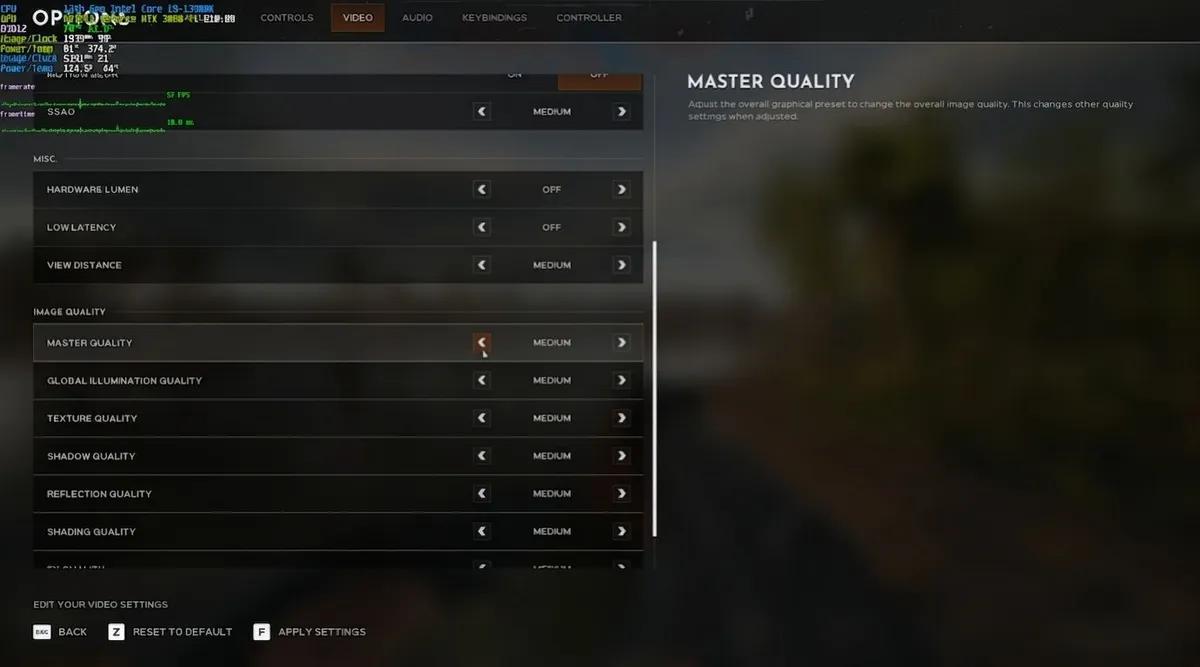
The baseline below was tested on a Ryzen 7 5700X with a Radeon 9060 XT 16GB and 32GB of DDR4, and it targets mid-range or slightly underpowered rigs. It holds up on stronger hardware too, so raise individual values once you confirm you have frames to spare.
Setting | Recommended value |
|---|---|
Window Mode | Fullscreen |
Resolution Scale | 100% |
Image Reconstruction | Off |
Post Processing Quality | Low |
Motion Blur | Off |
Film Grain | Off |
SSAO | Off |
Hardware Lumen | Low, or Off if stutter persists |
View Distance | Medium |
Master Quality | Custom |
Global Illumination Quality | Low |
Texture Quality | Medium, or High if VRAM allows |
Shadow Quality | Low |
Reflection Quality | Low |
Shading Quality | Low |
FX Quality | Low |
Landscape Quality | Low |
Foliage Quality | Low |
Low Latency | On |
Note: Texture Quality is the exception to the everything-on-Low rule, since it costs very little frame rate as long as your GPU has the VRAM for it. With the technical side handled, the Hell Let Loose: Vietnam Beginner's Guide - Tips and Tricks for Your First Matches covers the habits that decide matches, and All Game Modes in Hell Let Loose: Vietnam Explained tells you what each queue is asking for.
The settings that cost the most frames
Four values carry a disproportionate share of the load.
Global Illumination Quality is the worst offender, and higher values sacrifice frame rate for lighting accuracy that wins you nothing in a game where spotting a prone soldier in undergrowth is the actual skill. Foliage Quality is expensive by design on maps built around dense jungle, and dropping it to Low also makes enemies easier to pick out against the background. Film Grain is the surprise on the list, since turning it off can recover around 10 FPS by itself while removing visual noise that hides distant targets. Post Processing on Low reduces overhead across several effects at once, which makes it the highest-value single change you can make. Hardware Lumen sits slightly apart: Low improves lighting for a small cost, and Off is the answer only if stutter survives everything else.
View distance, VSync, and field of view
The one setting where cutting quality costs you kills.
View Distance deserves more respect than most performance guides give it, because long sightlines define how Hell Let Loose plays and dropping it too low hides players and vehicles before you can react to them. Medium is the floor, and the frame savings below that are not worth the combat disadvantage. For the separate gameplay sliders, values around 250 for team, unit, and vehicle distance keep icons readable while nameplate occlusion stays off. Vertical Sync is a genuine judgement call: on gives a smoother, tear-free image that feels consistent when holding a sightline, off reduces input latency, and Low Latency should stay On either way. For aiming, a Field of View near 100 with ADS FOV around 75 is the common competitive setup, and disabling Camera Motion removes screen movement that throws off aim while repositioning.
Upscaling and frame generation
Your options depend entirely on which card you own.
Nvidia users have DLSS with frame generation, which delivers the largest performance uplift available in the game. AMD users currently have no FSR option, leaving TSR as the built-in upscaler, while driver-level AFMF frame generation has produced mixed results. Frame generation of any kind adds input latency, and in a shooter where reaction time decides duels, some players skip it entirely on principle. If you are on AMD and stuck with TSR, keeping Global Illumination, Foliage, and Hardware Lumen on Low is the most reliable route to a stable frame rate. Test in a full match rather than an empty menu, since the cost only appears when the canopy and fifty players are on screen at once.
Fixing stutter that settings cannot solve
Shader compilation and slow storage cause the worst hitching in UE5 titles.
Start with a clean install of the latest driver for your Nvidia, AMD, or Intel card, because new Unreal Engine 5 games are unusually sensitive to driver versions. Move the game to an SSD, ideally NVMe, since running from a mechanical drive guarantees long loads and mid-match freezes while the game streams data continuously. Clear the shader cache next: on Windows, run Disk Cleanup and select DirectX Shader Cache, and Nvidia users can also clear it under Manage 3D Settings. The game rebuilds shaders on the next launch, which resolves a lot of hitching on its own. If problems remain, verify the game files through Steam by right-clicking the game in your Library, opening Properties, then Installed Files, then Verify integrity of game files.
Voice Chat and How To Stop Broadcasting
Voice works differently on controller and keyboard, and only one of the two can leave you transmitting by accident.
On controller, the left bumper is a toggle rather than a hold. Press it once to open the mic and once more to close it, and that single button controls your entire broadcast state. The only reliable confirmation is the bottom-left corner of the screen during a match: your name with three white lines beside it means you are live, and no indicator means you are muted. There is no audio cue and no separate mute icon, so checking the corner has to become a habit after every callout. Spam-pressing the bumper is the classic way to mute and immediately unmute yourself, so tap once and look before you tap again.
PC keyboard players do not have this problem, because voice only transmits while the assigned key is held and stops the moment it is released. The channels are separate, and pressing the wrong one sends your callout to the wrong audience.
Channel | Default PC key | Who hears it |
|---|---|---|
Proximity Chat | V | Nearby players regardless of unit |
Unit Radio | C | Your own squad |
Leadership Radio | X | Squad Leaders and the Commander |
Note: rebinding a familiar control onto C is the most common cause of a squad radio that suddenly stops working, and the symptom looks exactly like a hardware fault.
Leadership Radio only matters for roles that sit on the command channel, and getting it working is a prerequisite rather than a nice extra for anyone taking the top slot, as How To Play Commander in Hell Let Loose: Vietnam explains in more detail. Which channel you spend most of your time on depends on the job you picked, and All 17 Roles in Hell Let Loose: Vietnam and Which One to Pick First covers which roles carry a command line.
Can You Change Your Name in Hell Let Loose: Vietnam?
No, and there is nothing hidden in the menus that says otherwise.
Hell Let Loose: Vietnam launched without an in-game name editor, and your display name in matches comes directly from your platform account. The Social menu does not contain the T17 name editor that existed in the original game, and there is no rename field buried in settings or account options. Players who have searched every screen are not missing a menu path.
Feature | Original Hell Let Loose | Hell Let Loose: Vietnam |
|---|---|---|
T17 display name editor | Available in the Social menu | Not available |
Custom in-game name | Supported | Not supported |
Name shown in matches | T17 custom name | Platform account username |
Clan tags via custom name | Supported | Not supported |
Returning players are seeing platform usernames instead of the names they built up in the original, and console players in particular now show their gamertag in every match. No official explanation has been given, and the identity layer that used to sit between the platform account and the in-game display simply is not there. For clans this is a real downgrade, since consistent tags were how members recognised each other across servers.
The only workaround is changing the platform username the game reads, which for Xbox players means changing the gamertag. Think it through first: a platform name change applies to every game on that account, your friends list, and any other connected service, and platforms often attach cooldowns or fees to it. Xbox allows one free gamertag change and charges for the rest. If your goal is recovering your old T17 name, you can set the platform name to that text if it is still available, though the result is a coincidence rather than a restored identity. No announcement has confirmed the editor is coming back, so treat this as a launch-state limitation for now.
Getting Set Up Before Your First Match
Work through it in order: graphics first, since a stable frame rate makes everything else easier to judge, then voice bindings, then whatever you decide about your display name. Test the settings in a busy match with heavy foliage rather than a quiet corner, and watch for sudden drops during sustained firefights instead of a peak number in the menu. Re-check after each patch, because performance has been uneven since launch and settings you sacrificed early may be worth raising once updates land. If you are already thinking about unlocks, How To Level Roles and Build Better Loadouts in Hell Let Loose: Vietnam explains why the equipment you used in training is missing from your live loadout.


 Successfully copied... Thank you for sharing our content!:



5% deposit bonus up to 100 gems

a free Gift Case





EGAMERSW - get 11% Deposit Bonus + Bonus Wheel free spin


EXTRA 10% DEPOSIT BONUS + free 2 spins

3 Free Cases + 100% up to 100 Coins on First Deposit


5 Free Cases, Daily FREE & Welcome Bonuses up to 35%

3 free cases and a 5% bonus added to all cash deposits.

+5% to deposit




Comments